
Google Duo video calls are known for being simple and reliable. One feature many users enjoy is visual effects like filters, backgrounds, and face effects. These can make calls more fun or help you look a bit more polished. If you are wondering how to get effects on Google Duo video calls step by step, this guide walks you through everything in a clear and practical way.
Keep in mind that Google Duo has been integrated into Google Meet for many users. The steps below still apply to the Duo experience inside the Google Meet app, especially on mobile devices.
What Are Effects on Google Duo Video Calls?
Effects on Google Duo include visual changes you can apply during a video call. These usually fall into a few categories:
- Face filters that change colors or add simple animations
- Background effects that blur or replace your background
- Touch-up effects that adjust lighting or smooth appearance
Availability depends on your device, app version, and region. Not all phones support every effect.
What You Need Before Using Google Duo Effects?
Before trying to turn on effects, make sure the basics are covered.
Check Your App Version
Google Duo effects require an up-to-date app.
- Open the Play Store or App Store
- Search for Google Meet or Google Duo
- Update the app if an update is available
Older versions often do not show effects at all.
Confirm Device Compatibility
Effects work best on newer phones with stronger processors. If your phone is older, some options may not appear or may run slowly.
Sign In With a Google Account
Some effects are only available when you are signed in.
- Open the app
- Make sure you are logged into your Google account
How to Get Effects on Google Duo Video Calls Step by Step?
Once your app and device are ready, follow these steps during a call.
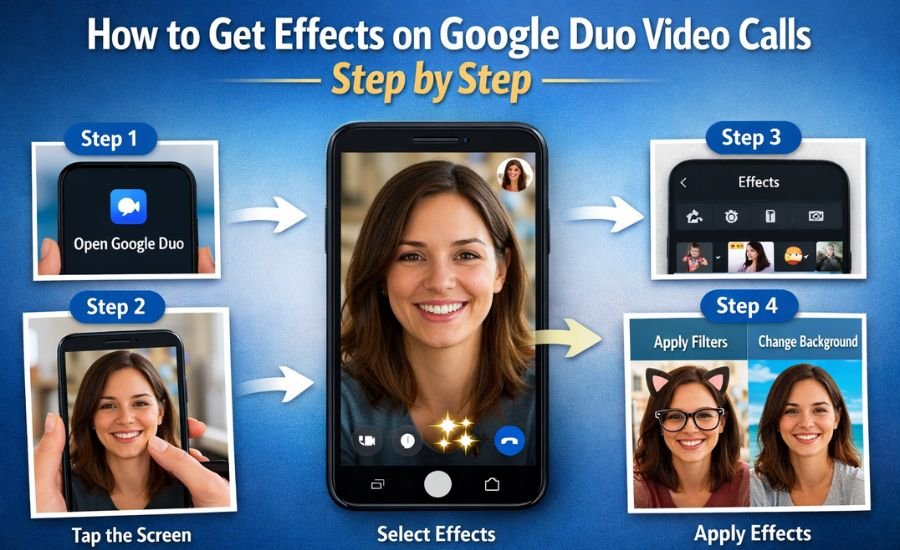
Step 1 Open Google Duo or Google Meet
Launch the app on your phone and start a video call with a contact. Effects are usually not available before the camera turns on.
Step 2 Tap the Screen During the Call
While on the call, tap anywhere on the screen. This brings up call controls like mute, camera switch, and effects.
Step 3 Find the Effects Icon
Look for an icon that looks like sparkles, a face, or stars. This icon may be labeled as Effects or Visual effects.
If you do not see it:
- Make sure your camera is on
- Try switching between front and rear cameras
- Check that you are using the mobile app, not the web version
Step 4 Choose an Effect
Tap the effects icon to open the effects menu. You can scroll through options such as:
- Face filters
- Background blur or background images
- Lighting adjustments
Tap any effect to preview it live.
Step 5 Apply or Remove Effects
Most effects apply instantly when you tap them. To remove an effect, select the normal or reset option, or tap the same effect again.
How to Use Background Effects on Google Duo?
Background effects are popular for privacy and cleaner visuals.
Blur Your Background
If available on your device:
- Open the effects menu
- Select background blur
- Adjust the level if options are shown
This helps hide clutter without changing your surroundings completely.
Change Your Background Image
Some devices support background replacement.
- Open effects
- Choose a background image
- Make sure lighting is good for better edge detection
Poor lighting can cause the background to look uneven.
Why Effects May Not Show Up on Google Duo?
If you cannot find effects, there are a few common reasons.
- Your phone does not support certain effects
- The app is not updated
- Effects are limited in your region
- You are using a web browser instead of the app
Google confirms that features can vary by device and account type. You can check the official Google Meet help documentation for current feature availability.
Tips for Better Results When Using Effects
To get the best experience, a few simple adjustments help.
- Use good lighting from the front
- Keep your face fully in the camera frame
- Avoid busy backgrounds when using face filters
- Close other apps to reduce lag
Effects rely on real-time processing, so performance matters.
Are Google Duo Effects Safe to Use?
Google processes visual effects on-device or through secure systems, depending on the feature. According to Google’s privacy, video call data is protected with strong security measures.
Still, it is a good idea to:
- Avoid sensitive backgrounds
- Keep your app updated for security fixes
For something different, Google Block Breaker: Challenging Fun is another Google feature worth exploring.
Final Thoughts
Learning how to get effects on Google Duo video calls step by step is mostly about having the right setup and knowing where to tap. Once enabled, effects can make video calls more engaging without much effort. If you do not see them right away, updating the app and checking device compatibility usually solves the problem.
As Google continues to update Meet and Duo features, effects may change or expand, so it helps to check settings from time to time.